After several months of broken builds on Eclipse servers, I finally decided to pass SCA Tools on Maven Tycho.
Plug-ins, features and even the update site have now a POM. If we skip reading time, it took me about one hour to add the required artifacts in the projects (mainly the POM) and about 15 minutes to configure a new Maven build on Eclipse servers. And for the first time since August 2010, SCA Tools is successfully built. Previous builds were probably due to a misconfiguration in our Buckminster configuration files.
Given my experience with Maven on Petals ESB, there is no ambiguity that Maven builds are more simple than Buckminster ones.
It does not make Buckminster a wrong choice, but it is more specific than Maven. I must confess that generally, I am not a big fan of Maven, because it sometimes has the wrong habit of drawing the entire internet. But Tycho proposes a nice approach, between the simplicity of PDE and all the possibilities that Maven offers. That is in particular true for Hudson builds but also for code analysis and reporting.
Here are some details for those that would be interested.
Preparing the project for Tycho
First, you must adapt your project hierarchy.
Your trunk (or branch, or whatever) should look-like this:
- features
- pom.xml
- Your feature projects
- plugins
- pom.xml
- Your plug-in projects
- parent
- update-site
- pom.xml
The directory names do not matter. I here took those of SCA Tools.
Plugins contains all the Eclipse plug-ins, and features all the features.
Every plug-in must have a pom.xml, located at the root (with the plugin.xml file). Here is such a POM taken from SCA Tools.
<project
		xsi:schemaLocation="http://maven.apache.org/POM/4.0.0 http://maven.apache.org/xsd/maven-4.0.0.xsd"
		xmlns="http://maven.apache.org/POM/4.0.0"
		xmlns:xsi="http://www.w3.org/2001/XMLSchema-instance">

	<modelVersion>4.0.0</modelVersion>
	<parent>
		<groupId>org.eclipse.soa.sca</groupId>
		<artifactId>org.eclipse.soa.sca.parent.pom</artifactId>
		<version>1.0.0-SNAPSHOT</version>
		<relativePath>../../parent/pom.xml</relativePath>
	</parent>

	<groupId>org.eclipse.soa.sca.plugins</groupId>
	<artifactId>org.eclipse.soa.sca.core.common</artifactId>
	<version>1.0.0-SNAPSHOT</version>
	<packaging>eclipse-plugin</packaging>

</project>
All the plug-ins will have the same parent. The packaging is eclipse-plugin, and is provided by Tycho.
Be careful, the version being 1.0.0-SNAPSHOT means the bundle version must be 1.0.0.qualifier. I have not checked whether Tycho can set the version directly from the manifest. I am not even sure that Maven would accept it. And I took the plug-in name / ID as the artifact ID.
Now, every feature must have a pom.xml, located at the root (with the feature.xml file). Here is such a POM taken from SCA Tools.
<project
		xsi:schemaLocation="http://maven.apache.org/POM/4.0.0 http://maven.apache.org/xsd/maven-4.0.0.xsd"
		xmlns="http://maven.apache.org/POM/4.0.0"
		xmlns:xsi="http://www.w3.org/2001/XMLSchema-instance">

	<modelVersion>4.0.0</modelVersion>
	<parent>
		<groupId>org.eclipse.soa.sca</groupId>
		<artifactId>org.eclipse.soa.sca.parent.pom</artifactId>
		<version>1.0.0-SNAPSHOT</version>
		<relativePath>../../parent/pom.xml</relativePath>
	</parent>

	<groupId>org.eclipse.soa.sca.features</groupId>
	<artifactId>org.eclipse.soa.sca.sca1_0.feature</artifactId>
	<version>1.0.0-SNAPSHOT</version>
	<packaging>eclipse-feature</packaging>

</project>
All the features will have the same parent (the same than for plug-ins). The packaging is eclipse-feature, and is provided by Tycho. Be careful, the version being 1.0.0-SNAPSHOT means the feature version must be 1.0.0.qualifier. And I took the feature name / ID as the artifact ID.
Tycho can build more than plug-ins and features.
It can also build update sites (and products). Here is the pom.xml for the update site of SCA Tools.
<project
		xsi:schemaLocation="http://maven.apache.org/POM/4.0.0 http://maven.apache.org/xsd/maven-4.0.0.xsd"
		xmlns="http://maven.apache.org/POM/4.0.0"
		xmlns:xsi="http://www.w3.org/2001/XMLSchema-instance">

	<modelVersion>4.0.0</modelVersion>
	<parent>
		<groupId>org.eclipse.soa.sca</groupId>
		<artifactId>org.eclipse.soa.sca.parent.pom</artifactId>
		<version>1.0.0-SNAPSHOT</version>
		<relativePath>../parent/pom.xml</relativePath>
	</parent>

	<groupId>org.eclipse.soa.sca</groupId>
	<artifactId>site</artifactId>
	<name>SCA Update Site</name>
	<version>1.0.0-SNAPSHOT</version>
	<packaging>eclipse-update-site</packaging>
</project>
This POM is set at the same level than the site.xml file.
The site.xml of the update site simply lists the features you want to include.
There is also a parent directory. We will discuss it in the next section.
Eventually, there are remaining POM (pom.xml) files. They are located at the root of the trunk and the plugins and features directories.
These POM simply list modules to build. They act as a glue in the build. Here is the example of the root POM of SCA Tools.
<project
		xsi:schemaLocation="http://maven.apache.org/POM/4.0.0 http://maven.apache.org/xsd/maven-4.0.0.xsd"
		xmlns="http://maven.apache.org/POM/4.0.0"
		xmlns:xsi="http://www.w3.org/2001/XMLSchema-instance">

	<modelVersion>4.0.0</modelVersion>
	<groupId>org.eclipse.soa</groupId>
	<artifactId>sca</artifactId>
	<name>sca.all</name>
	<version>1.0.0-SNAPSHOT</version>
	<packaging>pom</packaging>

	<modules>
		<module>parent</module>
		<module>plugins</module>
		<module>features</module>
		<module>update-site</module>
	</modules>
</project>
POM of other directories are quite similar. They list the directories to build. For those who are not familiar with Maven, the module order is important.
Plugins will be built before features but after the parent. Let’s now see what is exactly this parent.
Defining the parent
The parent is the project that defines all the common artifacts other projects share.
For Eclipse, one of the common things our projects (plug-ins and features) may have is an Eclipse installation (Eclipse Helios, Eclipse Indigo) and/or a target platform (which OS, which windowing system).
Generally, the parent will only contain a pom.xml file.
Here is the one used in SCA Tools.
<?xml version="1.0" encoding="UTF-8"?>
<project>

	<modelVersion>4.0.0</modelVersion>
	<groupId>org.eclipse.soa.sca</groupId>
	<artifactId>org.eclipse.soa.sca.parent.pom</artifactId>
	<version>1.0.0-SNAPSHOT</version>
	<name>Eclipse SCA Parent</name>
	<packaging>pom</packaging>
	<modules>
	</modules>

	<properties>
		<tychoVersion>0.10.0</tychoVersion>
		<scmBranch>trunk</scmBranch>
		<BUILD_ALIAS>CI</BUILD_ALIAS>
		<memoryOptions1>-Xms512m -Xmx1024m -XX:PermSize=256m</memoryOptions1>
		<memoryOptions2>-XX:MaxPermSize=256m</memoryOptions2>
		<systemProperties></systemProperties>

		<platform-version-name>helios</platform-version-name>
		<eclipse-site>http://download.eclipse.org/releases/${platform-version-name}</eclipse-site>
		<wikitext-site>http://download.eclipse.org/tools/mylyn/update/weekly</wikitext-site>
		<swtbot-site>http://download.eclipse.org/technology/swtbot/${platform-version-name}/dev-build/upd</swtbot-site>
	</properties>

	<build>
		<plugins>
			<!-- plugin>
				<artifactId>maven-antrun-plugin</artifactId>
				<version>1.4</version>
			</plugin -->

			<plugin>
				<groupId>org.sonatype.tycho</groupId>
				<artifactId>maven-osgi-packaging-plugin</artifactId>
				<version>${tychoVersion}</version>
				<configuration>
					<format>'v'yyyyMMdd-HHmm'-${BUILD_ALIAS}'</format>
					<archiveSite>true</archiveSite>
				</configuration>
			</plugin>

			<plugin>
				<groupId>org.sonatype.tycho</groupId>
				<artifactId>tycho-maven-plugin</artifactId>
				<version>${tychoVersion}</version>
				<extensions>true</extensions>
			</plugin>

			<plugin>
				<groupId>org.sonatype.tycho</groupId>
				<artifactId>target-platform-configuration</artifactId>
				<version>${tychoVersion}</version>
				<configuration>
					<resolver>p2</resolver>
					<ignoreTychoRepositories>true</ignoreTychoRepositories>
					<environments>

						<!-- Win 32 -->
						<environment>
							<os>win32</os>
							<ws>win32</ws>
							<arch>x86</arch>
						</environment>
						<environment>
							<os>win32</os>
							<ws>win32</ws>
							<arch>x86_64</arch>
						</environment>

						<!-- Linux -->
						<environment>
							<os>linux</os>
							<ws>gtk</ws>
							<arch>x86</arch>
						</environment>
						<environment>
							<os>linux</os>
							<ws>gtk</ws>
							<arch>x86_64</arch>
						</environment>
					</environments>
				</configuration>
			</plugin>
		</plugins>
	</build>

	<scm>
		<connection>scm:svn:http://dev.eclipse.org/svnroot/soa/org.eclipse.stp.sca-tools/org.eclipse.stp.sca/</connection>
		<developerConnection>scm:svn:http://dev.eclipse.org/svnroot/soa/org.eclipse.stp.sca-tools/org.eclipse.stp.sca/</developerConnection>
		<url>http://dev.eclipse.org/svnroot/soa/org.eclipse.stp.sca-tools/org.eclipse.stp.sca/</url>
	</scm>

	<issueManagement>
		<system>bugzilla</system>
		<url>https://bugs.eclipse.org/bugs/enter_bug.cgi?product=SCA</url>
	</issueManagement>

	<!-- Profiles -->
	<profiles>
		<profile>
			<id>platform-helios</id>
			<activation>
				<property>
					<name>platform-version-name</name>
					<value>helios</value>
				</property>
			</activation>
			<properties>
				<eclipse-site>http://download.eclipse.org/releases/helios</eclipse-site>
				<platform-version>[3.6,3.7)</platform-version>
				<swtbot-site>http://download.eclipse.org/technology/swtbot/helios/dev-build/update-site</swtbot-site>
			</properties>
		</profile>

		<profile>
			<id>platform-indigo</id>
			<activation>
				<property>
					<name>platform-version-name</name>
					<value>indigo</value>
				</property>
			</activation>
			<properties>
				<eclipse-site>http://download.eclipse.org/releases/indigo</eclipse-site>
				<platform-version>[3.7,3.8)</platform-version>
				<swtbot-site>http://download.eclipse.org/technology/swtbot/indigo/dev-build/update-site</swtbot-site>
			</properties>
		</profile>
	</profiles>

	<repositories>
		<repository>
			<id>helios</id>
			<layout>p2</layout>
			<url>${eclipse-site}</url>
		</repository>
		<repository>
			<id>swtbot</id>
			<layout>p2</layout>
			<url>${swtbot-site}</url>
		</repository>
		<repository>
			<id>wikitext</id>
			<layout>p2</layout>
			<url>${wikitext-site}</url>
		</repository>
	</repositories>

	<!-- Maven plug-ins -->
	<pluginRepositories>
		<pluginRepository>
			<id>sonatype-maven-central</id>
			<url>http://repository.sonatype.org/content/repositories/central/
			</url>
			<snapshots>
				<enabled>false</enabled>
			</snapshots>
			<releases>
				<enabled>true</enabled>
			</releases>
		</pluginRepository>
		<pluginRepository>
			<id>tycho</id>
			<url>https://repository.sonatype.org/content/repositories/snapshots/
			</url>
			<snapshots>
				<enabled>true</enabled>
			</snapshots>
			<releases>
				<enabled>false</enabled>
			</releases>
		</pluginRepository>
	</pluginRepositories>
</project>
When you run a build against the Helios platform, Tycho will contact the Helios update site to get the required artifacts that were not built or available locally. The dependencies to get will be retrieved from your features and not from the POM (as it usually the case with Maven).
Notice that it is possible to run tests at the end, using SWTBot. It was not done for SCA Tools, but it is possible.
With this POM, you can select against which platform you will build your plug-ins, by passing a property to Maven.
That’s what we are going to see now.
Building it on your machine
Now that you have set up all your projects, here is how you can build them on your own machine.
First, you need to install Maven 3. It is (or seems) a requirement of Tycho. For SCA Tools, we use Maven 3.0.3.
Then, go at the root of your file structure (the root of the trunk) and open a command line shell.
To build with all the default settings, simply type in mvn clean install
To build everything but without runnning the tests, type in mvn -Dskip-ui-tests=true clean install
To build the plug-ins for a specific platform (e.g. Indigo), type in mvn -Dplatform-version-name=indigo clean install
Wait few minutes. If all of your POM are fine, you should get a successful compilation.
If you have an update site, it will be available in the target directory of the project.
Setting up a build on Eclipse servers
If you are an Eclipse committer, it is possible to have automated builds on Eclipse servers.
First, you need to get access to a Hudson job or to create one. Once you have your job, log in at https://hudson.eclipse.org/ and go in the properties of your job. If you have the required permissions, you should have a configure menu on your left.
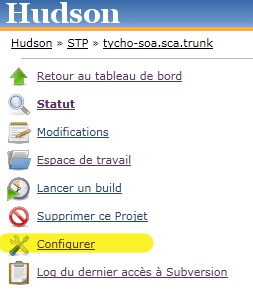
There are several options, but the one of interest is about the build.
- Select a high-level Maven build.
- Indicate the Maven version to use (e.g. 3.0.3).
- Define the targets and the properties. The target is a Maven target (e.g. clean, install). And the properties may be about the target platform (e.g. Indigo).
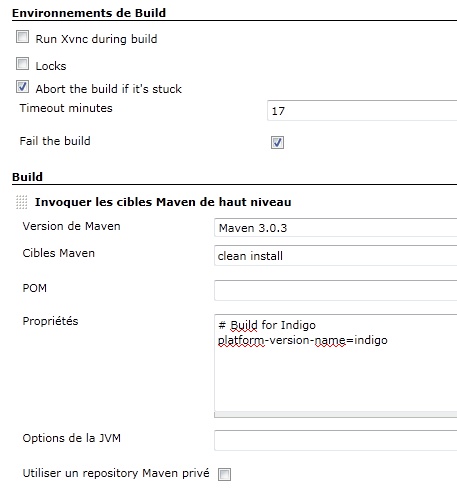
And on the next build, you should expect that.

Voilà!
Going further
I found a lot of indications on these web sites.
http://aniszczyk.org/2011/03/04/maven-tycho-hudson-jenkins-and-eclipse/
http://holistictendencies.wordpress.com/2011/03/18/building-an-eclipse-product-with-maven-and-tycho/
http://mattiasholmqvist.se/2010/02/building-with-tycho-part-1-osgi-bundles/
http://www.eclipse.org/tycho/documentation.php
Now that I have seen it work with SCA Tools and the BPEL Designer (which was already built with Tycho), the next step for me is to build Petals Studio in the same way.

 Vincent Zurczak's Blog