Show in...

Common Navigator and “Show In” menus

I recently had to work on the interactions between a custom view (based on the Eclipse Common Navigator) and the package explorer.

The first part consisted in adding my view in the Show In menu from the Package Explorer.
The Eclipse FAQ provided the required information, although I had to extend the CommonNavigator class.
I guess it must be feasible with adapters…

The second part consisted in adding the Show in menu on my view, and in adapting the selection to show it into the Package Explorer.
My first idea was to add an action by hand, that would show the Package Explorer and highlight my selection.
But it appeared to be really complicated. Eclipse had to provide something much more simple.

And it does!
In fact, the Eclipse Command Framework provides everything I needed.
The solution appeared when I noticed the Navigate menu already contained a Show In sub-menu with my view selections.

Here is the solution.

  1. Add  a new menu contribution on your view.
  2. Add a menu under it, with label to “Show In” and command to org.eclipse.ui.navigate.showInQuickMenu
  3. Add a command under this menu. The commandId is org.eclipse.ui.navigate.showIn
  4. Add a parameter under this command. Name = org.eclipse.ui.navigate.showIn.targetId and Value = the target view ID.

Applied for the Package Explorer ( org.eclipse.jdt.ui.PackageExplorer ) and the properties view ( org.eclipse.ui.views.PropertySheet ), I have the following structure.

The plugin.xml content

And the result…

Show in...

Resize a wizard dialog

A quick hint, if anyone is looking for a solution.

Obviously, if you create the wizard dialog by hand, you can use WizardDialog#setPageSize( … ).
However, it is a little bit harder to find when you want to force the size of a page in a wizard created by the platform.
Typically, one of the new wizards (File > New > …).

I got this problem with a TableViewer, on which I had set a TableLayout and forced the width of my columns.
It appeared that the wizard page was not large enough and let a scroll bar in my table.
The best solution was to force the width of my wizard (which had only one page).

Size Not Forced result in the presence of a scroll bar

The solution is in fact quite simple.
Just set the size of the shell in the createControl( Composite ) method.
At the end of this method, I put

// Force the shell size
 Point size = getShell().computeSize( 510, 540 );
 getShell().setSize( size );

Size Forced: no problem

Profiling Petals ESB with Eclipse TPTP

Hi,

For those who do not understand the title, this article might help.
Since it took me almost 3 hours to make it work I decided to post some king of tutorial to explain how I proceeded.
This blog
was very helpful, even it was only half of the path.

I here explain the main lines. I don’t detail all the possibilities.

Installing everything

I assume you already installed Petals ESB (Petals 3.0, platform edition).
Go at http://www.eclipse.org/tptp/home/downloads/ to download TPTP All-in-One.

This stand-alone Eclipse application will be the one used to get the profiling information.
Unzip it. Change the memory settings of the application: open Eclipse.ini and upgrade -Xmx to 512.

From the same address, download the Stand Alone Agent Controllers.
Unzip this archive on the disk, and define an environment variable TPTP_AC_HOME which points to the root folder.
If it helps you, in the Petals debug script, TPTP_AC_HOME/plugins is referenced.

Then, run TPTP_AC_HOME/bin/SetConfig.bat (or .sh). It should result in the creation of the file TPTP_AC_HOME/config/serviceconfig.xml.

Eventually, FYI, I slightly changed the PETALS_HOME/bin/debug.bat (.sh) script.
I modified it so that %PROFILE_OPTS% does not contain any quote character (you can just display the command to be sure).
However, I do not know if it was really necessary.

Launching and connecting everything

Since I got troubles with this, I strongly advise you to terminate all the Java processes before running the TPTP profiler.
Run the TPTP_AC_HOME/bin/ACServer script or application.

Then, start Petals with the profiling options PETALS_HOME/bin/debug.bat -P -M memory
These options mean you are profiling (-P) Petals with Eclipse (we could use NetBeans) and that you are watching object allocations.
The available options are specified in the Petals debug script.

Eventually, start the TPTP Eclipse application.

The Petals debug script makes the profiling work in enabled mode. It means it is activated when Eclipse connects to the profiler agent.
To create this connection, follow these steps:

  1. Go into Run > Profile Configurations…
  2. Right-click Attach to Agent and click New.
  3. Give a name to the new configuration, and add it a new port on the localhost (10006).
  4. Select this second port and go into the Agents tab.
  5. Wait few seconds and select the agent that was set by the Petals debug script.
  6. Select Apply and then Profile.

The main profiling tab

The Agent tab in Eclipse TPTP

If an error occurs, you can check the ACServer log.
It is called servicelog.log and located under TPTP_AC_HOME/config.

Profiling…

It’s profiling with 3 dots, as it is not as simple as I expected.
In fact, it is very slow with Petals. I even run into an out-of-memory exception.
This is why I mentionned the memory settings should be upgraded.
I will have to make other tries, as I spent less than 15 minutes to use the profiler.

But the biggest part is already done.

Permgen Space with Eclipse

Hi,

If you develop Eclipse plug-ins, you are always brought to run an Eclipse application.
It means that to test your plug-ins, you have to launch a second Eclipse from the one where you develop.

One common problem in this case is the PermGen Space issue.
This is in particular true if you test GMF plug-ins or if there is a lot of class generation.

To solve this, you can modify the permgen space allocated when you run the other Eclipse.
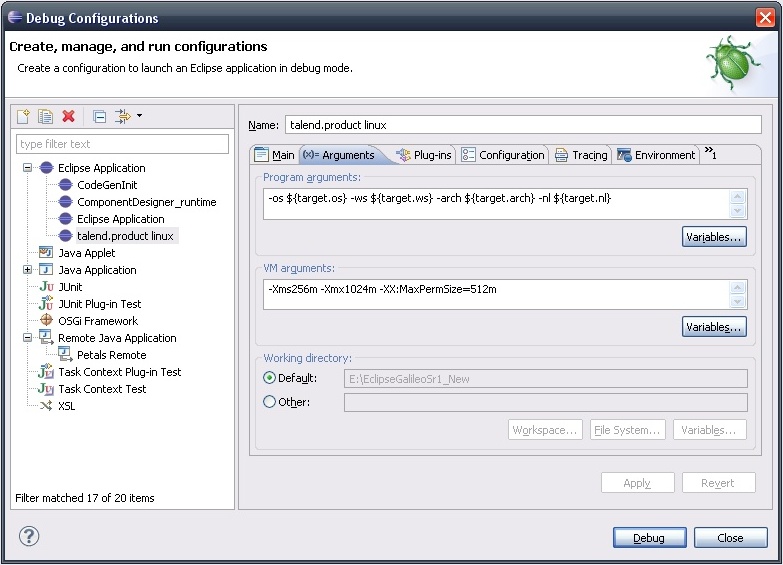
Go into Run > Debug Configurations. Select your Eclipse configration and go into the Arguments tab.
The field to upate is the VM Arguments.

As an example, when running Talend Open Studio in debug, I have to use the following settings.

-Xms256m -Xmx1024m -XX:MaxPermSize=512m

Debug Configuration